3.0. Overview
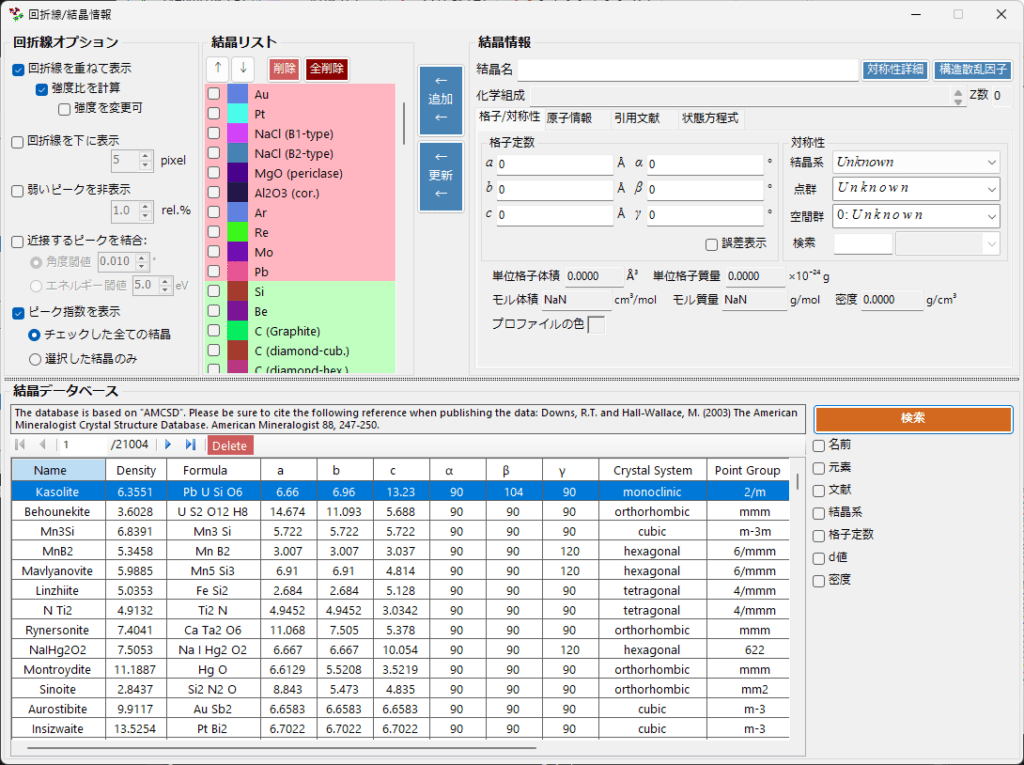
Clicking the “Diffraction Lines / Crystal Information” icon in the Main Window opens the following window. In this window, you can configure which crystals’ diffraction peaks to display and how they are displayed.
The lower part of the window displays a crystal database, from which you can search and add crystals to the crystal list.
3.1. Diffraction Line Options
Configures settings related to diffraction line display.
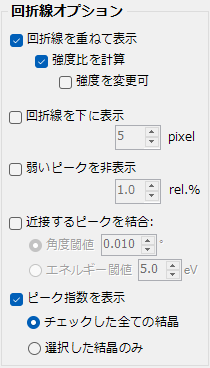
Overlay Diffraction Lines
Selects whether to overlay diffraction lines on the profile data.
Calculate Intensity Ratios
Selects whether to calculate diffraction intensity ratios from structural data. If atomic positions have not been entered, the calculation will not be performed regardless of this setting.
Allow Intensity Modification
Selects whether the entire set of diffraction lines can be scaled without changing the intensity ratios.
Show Diffraction Lines Below
Sets whether to display diffraction peaks at the bottom of the profile and specifies their height (in pixels).
Hide Weak Peaks
Selects whether to hide peaks that are too weak compared to the strongest line. The threshold is specified as a ratio relative to the strongest line.
Merge Adjacent Peaks
Selects whether to merge and display peaks that are crystallographically inequivalent but have close or identical 2θ values1. Set the angle or energy threshold to determine how close peaks must be to be merged.
Show Peak Indices
Selects whether to display diffraction line indices for all checked crystals (“All checked crystals”) or only for the currently selected crystal (“Selected crystal only”).
3.2. Crystal List
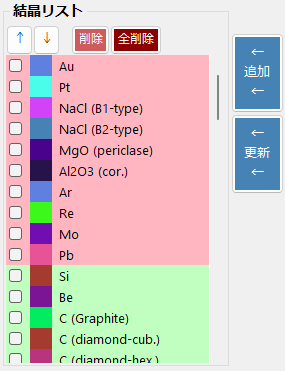
Displays exactly the same information as the crystal list in the Main Window. Checked crystals have their diffraction lines displayed in the Main Window.
Up/Down Arrow Buttons
Changes the order of crystals. (The first through sixth entries are reserved for EOS and cannot be reordered.)
Delete / Delete All Buttons
Deletes the currently selected crystal from the list, or deletes all crystals from the list.
Add Button
Adds the crystal configured in the right panel (described below) as a new entry in the list.
Update Button
Replaces the currently selected crystal with the crystal configured in the right panel (described below).
3.3. Crystal Information
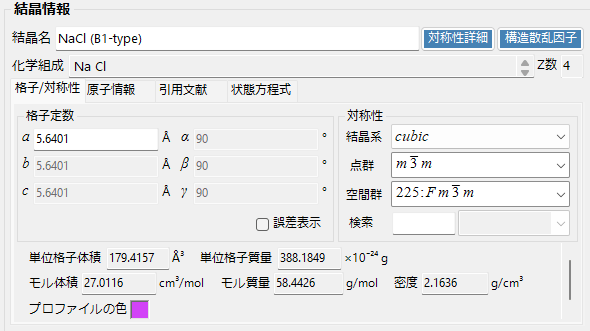
Displays detailed information about the selected crystal. For more details, see C.1. Crystal Information Component.
In PDIndexer, you can freely change the lattice parameters by moving diffraction lines. If you want to revert to the lattice parameters at the time the application was launched, use “Revert to lattice parameters at app startup” from the right-click menu in “Crystal Information.”
3.4. Crystal Database
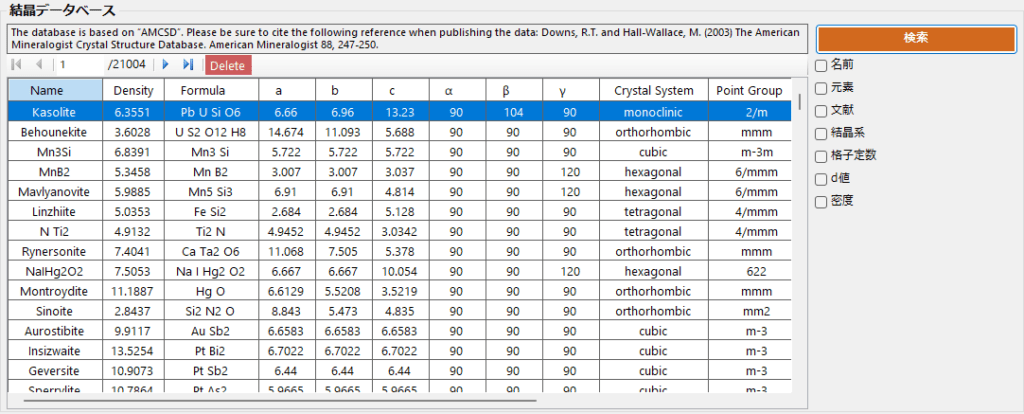
Provides search and import functionality for over 20,000 crystal structures. This database is based on the “American Mineralogist Crystal Structure Database.” When using this data, please read http://rruff.geo.arizona.edu/AMS/amcsd.php carefully and be sure to cite the following reference: Downs, R.T. and Hall-Wallace, M. (2003) The American Mineralogist Crystal Structure Database. American Mineralogist 88, 247-250.
The crystal database is a component shared across several software applications I have developed, and is described in detail on a separate page.
When you select a crystal from the search results table, its information is transferred to “3.3. Crystal Information.” If you then want to add it to the crystal list, press the “Add” or “Update” button.