1.0. Overview
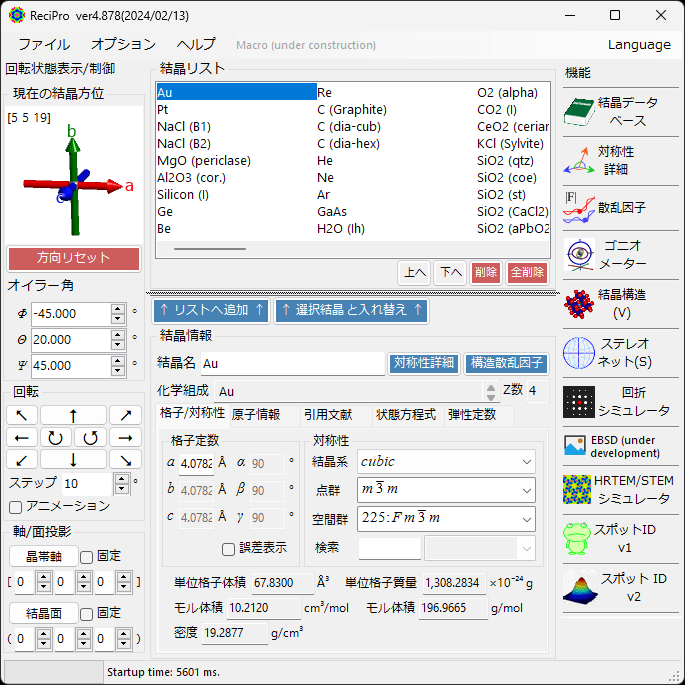
When ReciPro starts successfully, the Main Window is displayed. In this window, you select the crystal to be calculated, rotate it, and launch various tools. Crystal loading also supports drag and drop.
This window is broadly divided into:
- File menu (top)
- Rotation state display/control (left)
- Crystal list (upper center)
- Crystal information (lower center)
- Tool menu (right)
The details are described below.
1.1. File Menu
1.1.1. File
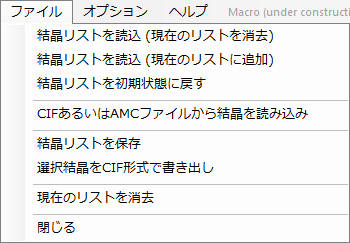
Load crystal list (clear current list)
Loads a new crystal list file (xml extension). Any previously loaded list will be deleted.
Load crystal list (add to current list)
Loads a crystal list file (xml extension). The loaded crystal list is appended after the current list.
Reset crystal list to initial state
Reloads the crystal list that was loaded at startup.
Load crystal from CIF or AMC file
Loads a crystal from a CIF file or AMC file and adds it to the end of the current crystal list.
Save crystal list
Saves the crystal list.
Export selected crystal in CIF format
Saves the currently selected crystal in CIF format.
Clear current list
Deletes all crystals in the current crystal list.
Close
Exits the application.
1.1.2. Options
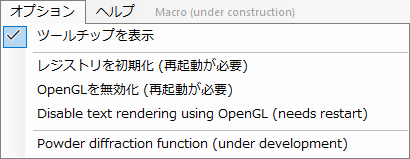
Show tooltips
When checked, tooltips are displayed.
Initialize registry (restart required)
Resets the registry upon restart. The registry stores information such as window size, wavelength, and camera length. If the software becomes unstable for any reason, resetting the registry may help.
Disable OpenGL (needs restart)
When checked, OpenGL functionality is disabled. ReciPro uses OpenGL 1.3 or later for 3D rendering. However, if you are using an old PC, a remote desktop environment, or a Windows emulation environment on Mac, the OpenGL version may be below 1.3. In such cases, please check this option.
Disable text rendering using OpenGL (needs restart)
On some GPUs, text rendering using OpenGL may not work properly. In such cases, check this option and restart.
1.1.3. Help
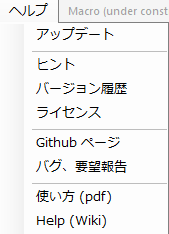
Update
Checks whether a new version has been released, and performs an update if available.
Hints
Deprecated.
Version history
Displays the version history.
License
Displays the license.
Github page
Opens the Github page.
Bug/feature request
Opens the Github page.
Manual (PDF)
Displays this page.
Language
Switches the language. Currently, only English and Japanese are supported. A restart is required after switching.
1.2. Rotation State Display/Control
1.2.1. Current Crystal Orientation
The current rotation state of the crystal is displayed. You can rotate the crystal by dragging this area with the mouse.
The crystal axes are displayed as red: a-axis, green: b-axis, blue: c-axis.
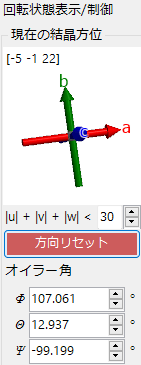
|u|+|v|+|w| < ##
Displayed when you double-click the zone axis display. Sets the range for zone axis indices corresponding to the direction perpendicular to the screen. For example, if set to u+v+w < 30, it displays the nearest orientation within the range where the sum of absolute values of uvw does not exceed 30.
Reset direction
Pressing “Reset direction” resets the crystal orientation to its initial state. The “initial state” of crystal orientation in ReciPro is defined as: the c-axis is perpendicular to the screen, and the b-axis points upward when projected onto the screen.
Euler angles
Displays/sets the crystal rotation state using Euler angles. Euler angles are expressed as a set of three angles, and in ReciPro they are defined as:
Ψ: Z-axis rotation
θ: X-axis rotation
Φ: Z-axis rotation
with rotation operations applied in the order Ψ, θ, Φ. For a detailed explanation of the coordinate system, see 2. Goniometer and the Appendix.
1.2.2. Rotation
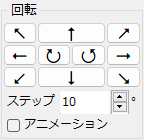
Pressing an arrow button rotates the crystal by the angle specified in “Step” in the direction of the arrow.
When “Animation” is checked, the crystal rotates continuously at the specified rotation speed.
1.2.3. Axis/Plane Projection
Rotates the crystal by specifying zone axis or crystal plane indices. When “Fix” is checked, the rotation operation is performed with the specified zone axis or crystal plane spatially fixed.
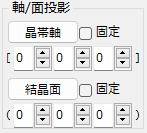
Zone axis
Sets the specified zone axis to the direction perpendicular to the screen (toward the viewer) and rotates the crystal. If a crystal plane perpendicular to this axis is also set (i.e., the dot product is zero), the direction of that plane is set to point upward on the screen.
Crystal plane
Sets the normal of the specified crystal plane to the direction perpendicular to the screen (toward the viewer) and rotates the crystal. If a zone axis perpendicular to this plane is also set (i.e., the dot product is zero), the direction of that zone axis is set to point upward on the screen.
1.3. Crystal List
Displays/modifies the list of loaded crystals. In the initial state right after installation, approximately 80 crystals should be included.
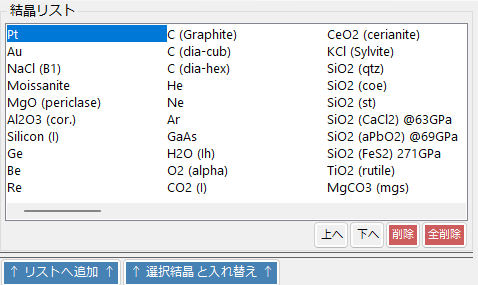
When you select a crystal from the list, its detailed information is displayed in the lower screen (Crystal Information), and it is set as the crystal to be calculated.
Move up/Move down
Moves the selected crystal up/down in the list order.
Delete
Deletes the selected crystal from the list.
Delete all
Deletes all crystals in the list.
Add to list / Replace selected crystal
Adds the configured crystal to the end of the list. Or replaces the selected crystal in the list with the configured crystal.
1.4. Crystal Information
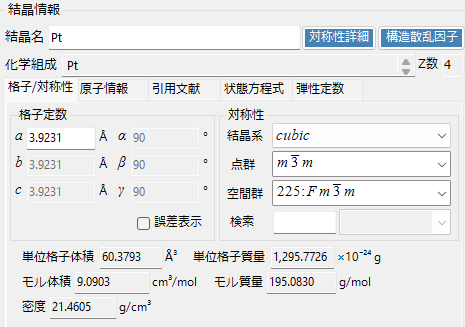
Sets/displays the crystal’s lattice parameters, symmetry, atomic positions, etc. You can also load any crystal by dragging and dropping a CIF file or AMC file into this area.
If you make any changes to a crystal, be sure to press the “Add to list” or “Replace selected crystal” button. If you do not press it, the information will not be saved to the crystal list and your changes will be lost.
Detailed information about the selected crystal is displayed. This is explained in detail on a separate page.
1.5. Tools
1.5.1. Crystal Database
Launches the crystal database function. You can search not only by crystal name but also by chemical composition, symmetry, etc. This is explained on a separate page.
1.5.2. Symmetry Details
Displays symmetry-related information for the selected crystal and provides crystallographic calculations. This is explained on a separate page.
1.5.3. Scattering Factor
Lists crystal planes and calculates crystal structure factors. This is explained on a separate page.
1.5.4. Goniometer
Renders and analyzes the rotation state (matrix) in 3D. For details, see 2. Goniometer.
1.5.5. Crystal Structure
Renders the crystal structure in 3D. Crystal planes, unit cells, coordination polyhedra, etc. can also be displayed. For details, see 3. Crystal Structure.
1.5.6. Stereonet
Plots the directions of crystal planes or zone axes on a stereonet. For details, see 4. Stereonet.
1.5.7. Diffraction Simulator
Performs electron/X-ray diffraction simulations. For details, see 5. Diffraction Simulator.
1.5.8. EBSD
1.5.9. HRTEM/STEM Simulator
Performs STEM (Scanning Transmission Electron Microscopy) and HRTEM (High Resolution TEM) simulations. For details, see 7. HRTEM/STEM Simulator.
1.5.10. Spot ID v1
Indexes captured electron diffraction patterns. For details, see 8. Spot ID v1.
1.5.11. Spot ID v2
Loads captured electron diffraction data and performs spot detection, fitting, and indexing. For details, see 9. Spot ID v2.